
Format String
The Format String manipulate step allows you to compose the string by retrieving the values from a set of columns within a scheme.
The pattern is applied via the Format and Columns fields.
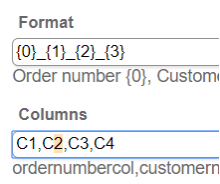
In the example above, the value from C1 column will be taken, then the sign “_” will follow, then the value from C2 column will be taken and so on. E.g. value1_value2_value3_value4.
To configure this manipulate step, follow the instructions below:
- In the Admin Navigation tree, select Interfaces > InterfaceName > Tasks > TaskName > Steps.
- On the toolbar, click New >New Manipulate Step.
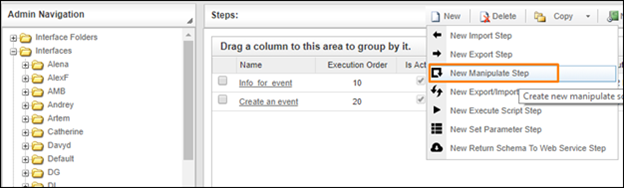
Creating a New Manipulate Step
- Navigate to the Texts section and select Format String.
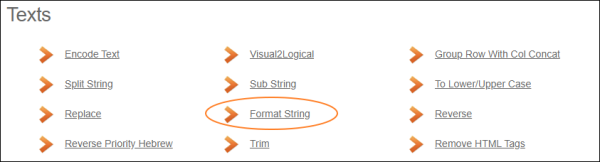
Texts Section
- In the Format String work area, fill in the following fields:
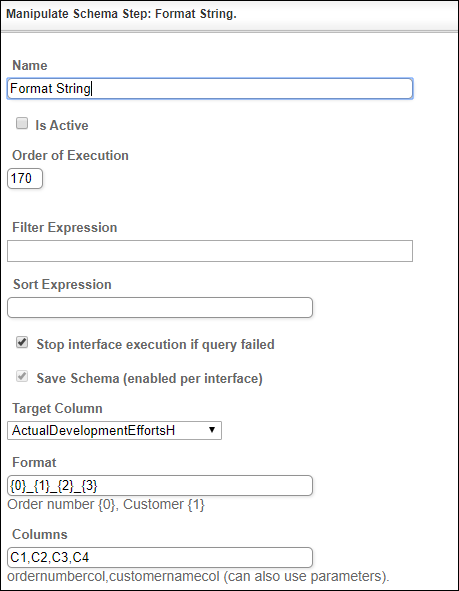
| Fields | Description |
|---|---|
|
Name |
Provide a distinctive name for this step. |
|
Is Active |
Select the check box to engage the scheduler for this step. |
|
Order of Execution |
Enter the order in which this step should be executed. |
|
Filter Expression |
Optional. Use this filed to filter data from the source database prior to inserting it into the Schema table. |
|
Sort Expression |
Optional. Use this field to sort data from the source database prior to inserting it into the Schema table. |
|
Stop interface execution if query failed |
Optional. If enabled, the system will stop any data manipulation if the query returns an error. |
|
Save Schema (enabled per interface) |
If selected, the schema is created for this step. |
| Target Column | Select the column where the target data is stored. |
| Format | Specify the format that will be applied in the target column. Example: {0}_{1}_{2}_{3} |
| Columns | The columns that will be converted to the specified format. The parameters can also be used here. |
- Click the Save button.